
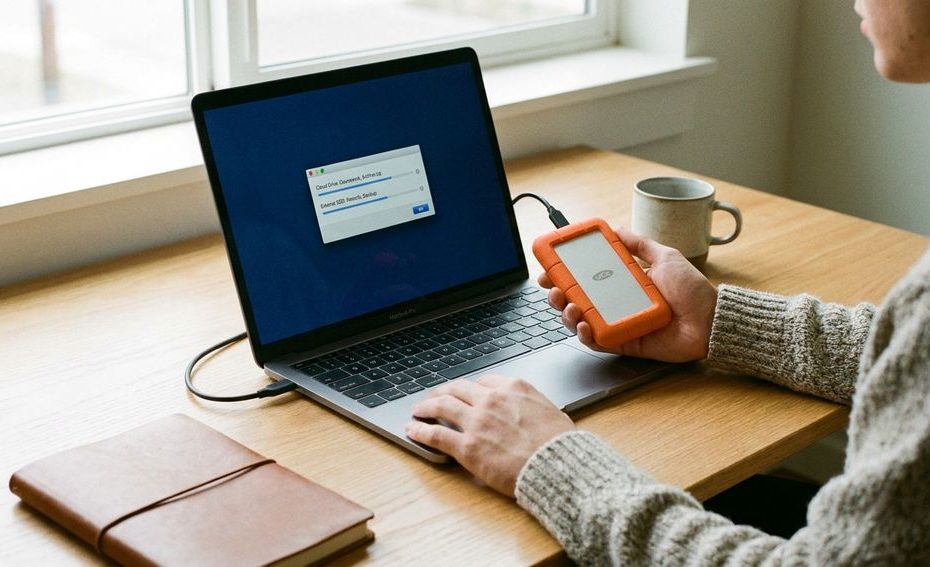
A good student laptop backup protects the school files, personal records, creative work, and account details you can’t quickly replace if your computer stops working. You don’t need to save every random download first; you need to protect the files tied to grades, deadlines, money, identity, and access.
A laptop failure rarely waits for a convenient week. It can happen during finals, before a group project presentation, or right after you finish editing a paper. This guide shows you what to back up first, where to store it, and how to make the process simple enough to keep using all semester.
What Files Should You Back Up Before Your Laptop Dies?
Back up your active coursework first: essays, lab reports, slides, spreadsheets, coding projects, class notes, research files, and group project materials. These files are usually the hardest to recreate under deadline pressure.
Start with the folders where student work usually lives. Check your Desktop, Documents, Downloads, Pictures, Screenshots, and any class-specific folders you created during the semester. Don’t assume everything is already protected just because you use a cloud account. Files saved only on your laptop are still at risk if that device fails.
Give current classes priority over old files. A paper due tomorrow matters more than a freshman-year reading packet you already submitted. If storage space is limited, copy the work connected to active assignments, finals, research, internships, and graduation requirements first.
Which College Documents Are Too Important To Lose?
Save the documents that prove enrollment, academic progress, finances, and identity-related school access. That includes syllabi, transcripts, tuition records, financial aid documents, scholarship paperwork, housing forms, internship paperwork, and graduation planning files.
These files don’t always feel urgent until you need them. A missing syllabus can make it harder to confirm grading rules, late policies, exam dates, or required reading. A missing transcript copy or financial aid letter can slow down applications, appeals, transfer paperwork, or job forms.
Create one folder called “School Records” or “College Documents” and organize it by term or category. Keep file names plain and searchable, with course names, document types, and dates if useful. Clean names beat mystery files like “scan final final 2.pdf” when you’re stressed and searching fast.
Is Google Drive Or OneDrive Enough For A Student Laptop Backup?
Google Drive or Microsoft OneDrive can protect many student files, but only when your important folders are actually syncing. If your essay is sitting in a local Downloads folder that never syncs, cloud storage won’t save it.
Cloud storage is useful because it protects files from a single laptop failure. If your device won’t turn on, you can sign in from a campus computer, library machine, borrowed laptop, or replacement device. That makes cloud storage especially helpful when you’re working close to a deadline.
Still, cloud storage has limits. Free accounts may run out of space, university accounts may have school rules attached, and some folders may not sync unless you set them up. Check your school-provided account, review which folders are included, and open the cloud app on another device to confirm your files are really there.
Should You Use An External Drive Or Cloud Storage?
Use cloud storage for fast access and an external drive for an extra copy. A strong laptop backup for college students does not depend on one location, one device, or one account.
An external drive is useful for large files that may not fit easily in free cloud storage. Design projects, video edits, photo libraries, music production files, research recordings, and full folder backups can take up a lot of space. A portable drive gives you room, and it also keeps a copy outside your laptop.
Cloud storage is better for daily schoolwork because it can sync changes automatically. An external drive works best when you plug it in on a routine schedule, such as every weekend or after major project work. The safest setup is simple: cloud sync for active files, external drive backup for bigger folders, and one extra copy away from your laptop.
What Is The 3-2-1 Backup Rule For Students?
The 3-2-1 backup rule means keeping three copies of important data, using two different storage types, with one copy stored away from your main device. For students, that can mean your laptop, a cloud account, and an external drive.
This rule works because every storage method can fail in its own way. A laptop can stop booting, an external drive can be lost, and a cloud account can run out of space or stop syncing certain folders. When you spread copies across more than one place, one failure doesn’t erase the whole semester.
You don’t need to build an advanced setup. Keep your working copy on the laptop, sync class folders to cloud storage, then copy major folders to an external drive once a week. That’s a practical student laptop backup plan you can maintain without turning file protection into a second job.
How Can You Automate Backups Before The Semester Gets Busy?
Automate the folders you use every week, then set a simple reminder for anything that needs a manual copy. The goal is to reduce decisions when classes, work, exams, and projects start competing for your time.
On a Windows computer, folder backup through OneDrive can help protect common folders when configured. On a Mac, Time Machine can create backups to an external drive or supported network storage. Google Drive can also sync selected files and folders, depending on how you configure it.
After setup, test it. Create a small file called “backup test,” save it in your class folder, then check whether it appears in the cloud or backup location. A backup you never test is a guess. A tested backup gives you confidence before your laptop starts acting strange.
What Should You Do If Your Laptop Is Already Failing?
If your laptop is already freezing, clicking, overheating, restarting, or refusing to charge reliably, stop using it for anything that isn’t backup-related. Save the most important files first, starting with current assignments and irreplaceable documents.
Do not spend the first hour reorganizing your photo library or deleting old downloads. Copy active coursework, class notes, research data, records, creative portfolio files, and browser exports if you need saved bookmarks. If the laptop stays on only briefly, move files in small batches instead of attempting one huge transfer.
If the device won’t turn on, avoid repeated power attempts. A repair shop or campus technology support desk may be able to remove the storage drive or recover files, but recovery is never guaranteed. Prevention is the only reliable fix, so treat warning signs as your signal to back up immediately.
Do You Need To Back Up Your Entire Laptop?
You don’t always need a full-device backup, but you do need a complete copy of the files you can’t replace. For most students, selective backup is faster, cheaper, and easier to maintain than saving the entire computer.
A full backup helps if you want to restore apps, settings, and system files after a device failure. That can be useful for students with specialized software, custom settings, coding tools, design programs, or creative workflows. It can also save time if you want a replacement laptop to feel familiar faster.
Selective backup makes sense when storage space or time is limited. Start with coursework, school records, creative files, browser bookmarks, contacts, calendars, software license information, and any files tied to jobs or internships. Once the critical files are protected, you can decide whether a full backup is worth the storage.
How Often Should College Students Back Up Their Files?
Back up active schoolwork automatically if possible, then review your backup setup once a week. During finals, major projects, lab reports, thesis work, or portfolio deadlines, check backups more often.
Frequency depends on how painful it would be to lose today’s work. If losing one afternoon of edits would hurt your grade, your file should sync the same day. If losing a week of work would damage a group project, your group folder needs cloud storage and clear ownership.
Make backup review part of an existing routine. Plug in your external drive after Sunday laundry, after your weekly planning session, or after submitting a big assignment. Habits tied to normal student routines last longer than vague reminders.
What Should Your Weekend Backup Checklist Include?
A weekend checklist keeps backup simple. You’re checking that your most valuable files exist in more than one place, not rebuilding your whole computer setup from scratch.
- Copy current essays, slides, spreadsheets, and project files.
- Confirm class notes and research files are syncing.
- Save syllabi, transcripts, tuition records, and financial aid documents.
- Export or sync contacts, calendars, and important bookmarks.
- Copy creative work, portfolio files, photos, videos, and design files.
- Save software license keys, setup files, and important app settings where possible.
- Check your backup from another device or browser.
Don’t skip the last step. Opening your cloud account from another device or checking your external drive confirms the files are usable. A backup that exists but can’t be opened won’t help much during a deadline emergency.
What Should College Students Back Up Before A Laptop Fails?
- Coursework, notes, research
- Syllabi, transcripts, aid files
- Photos, videos, design work
- Settings and license keys
- Contacts, calendars, bookmarks
Build A Backup Habit Before Your Laptop Forces The Issue
A smart student laptop backup starts with the files that affect your grades, money, access, and future plans. Protect active coursework first, then school records, creative work, personal organization files, and software details. Use cloud storage for files you change often, add an external drive for another copy, and follow the 3-2-1 rule in a simple student-friendly way. If your laptop already shows warning signs, stop nonessential use and copy the most important files immediately. The best backup plan is the one you set once, test, and keep using before the screen goes black.
References
- Cybersecurity and Infrastructure Security Agency (CISA): Data Backup Options
- Backblaze: The 3-2-1 Backup Strategy
- World Backup Day
- Google Drive Help: Backup And Sync
- Google Drive Help: Storage
- Microsoft Support: Back Up Your Folders With OneDrive
- Apple Support: Back Up Your Mac With Time Machine
- Microsoft OneDrive: Online Cloud Storage.

Brian C Jensen is the CEO of Legacy Global Consulting, Inc., a management consulting firm. With 10+ years of experience, he advises organizations on digital transformation, risk management, and growth strategy—helping clients anticipate market shifts and scale sustainably.